
How it works
From download to your first translation
Seven steps. Most people are through them in a few minutes, and only the last two are part of daily use.
- 1
Download the lightweight installer
Get OrbonisInstaller.exe (about 10.3 MB) from the download page. It is a small setup file rather than the whole application.
The installer fetches the current build during setup, so you do not have to hunt for the newest version later.
- 2
Install Orbonis
Run the installer and follow the prompts. Windows may show a standard security prompt for a newly published application; allow it to continue.
Installation does not require you to disable your antivirus or grant administrator rights beyond the normal setup step.
- 3
Enter and activate your license key
Open Orbonis, paste the license key from your purchase email, and activate. Activation performs a short online check and then the application is ready.
Lost the email? Use the license retrieval page with the address you used at checkout, or write to info@orbonis.shop.
- 4
Complete first-run settings
Choose your usual target language, the OCR engine you want to start with and a translation provider. If you plan to use your own OpenAI-compatible endpoint, enter the URL, model name and API key here.
Everything on this screen can be changed later; nothing is locked in by the first run.
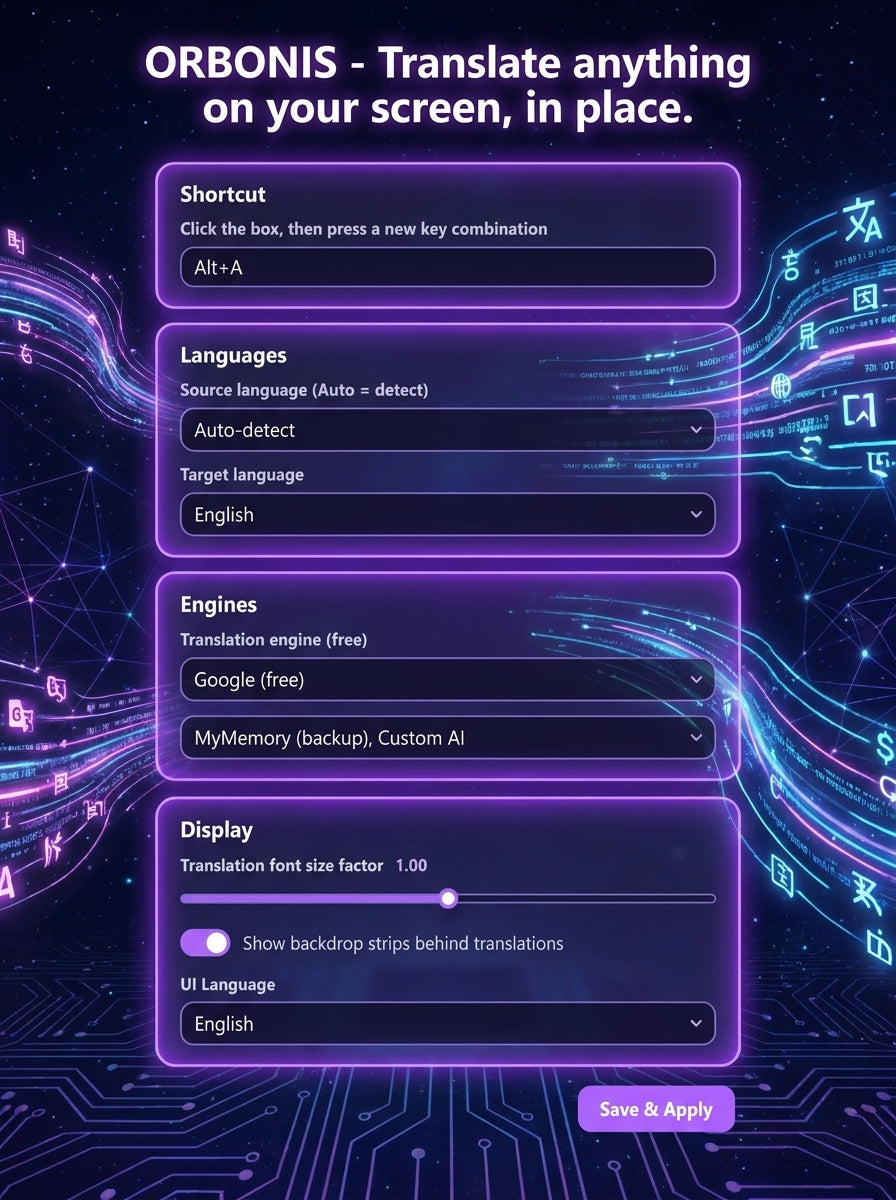
- 5
Choose your keyboard shortcut
Pick a global shortcut that does not clash with your other software. This is the only thing you need to remember.
The shortcut works while other applications are focused, including most fullscreen software.
- 6
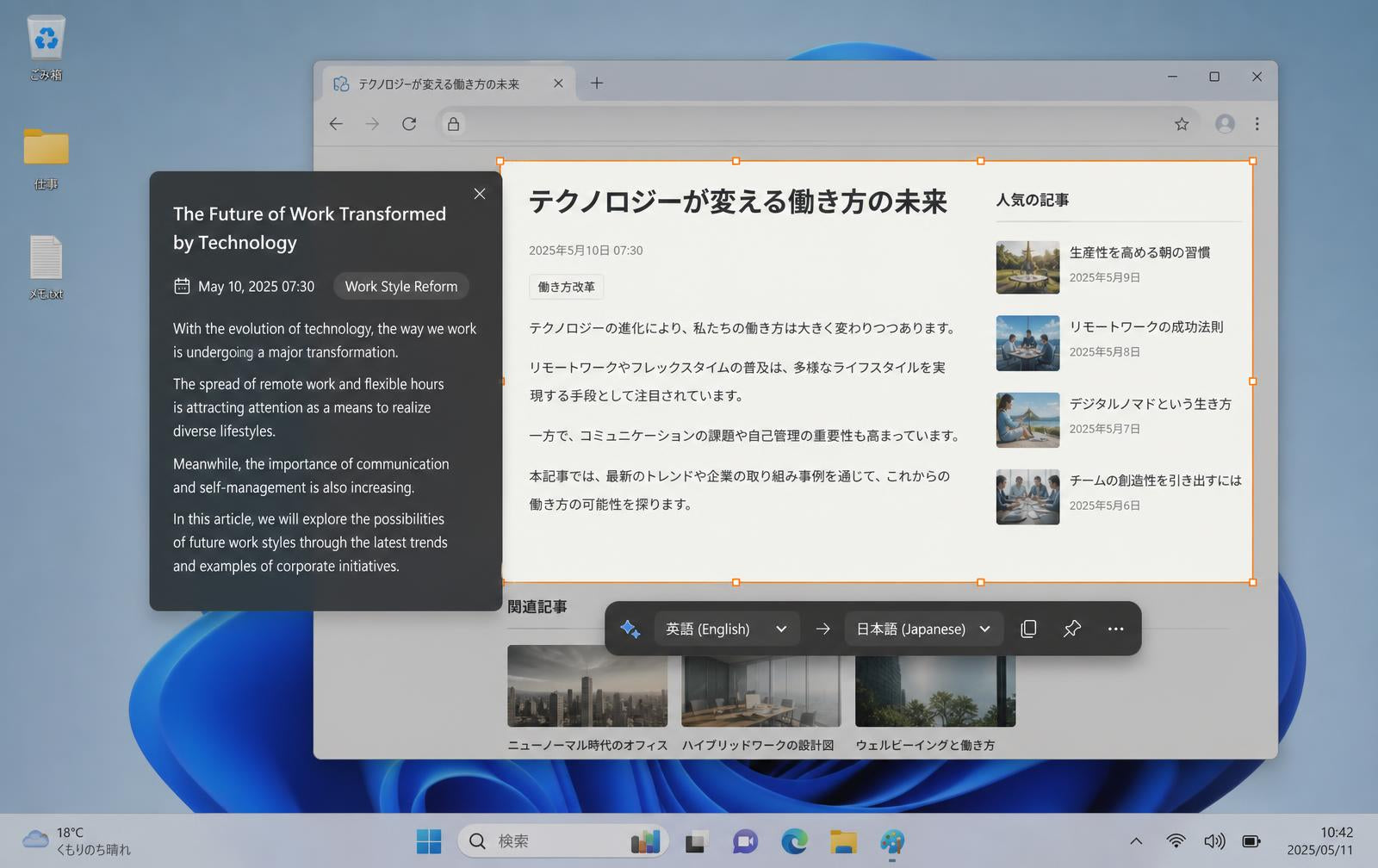
Select an area on screen
Press the shortcut and drag a rectangle around the text you want to read — a paragraph, a caption, a menu item, a speech bubble. Press Escape to cancel.
Recognition runs on that region only, not on your whole screen.
- 7
Read the translated result in place
The translation appears over the region you selected, so you stay in the document, game or page you were already reading. Dismiss it and carry on.
You can copy the recognised text or the translation if you need it somewhere else.
Good to know
Two things worth understanding up front
Still unsure whether it fits your material? Read the FAQ or ask us directly.